




Windows 10 Guide
How to Turn Off the Windows 10 Update Service
Use a safe workflow for disabling Windows 10 update services with WUB, including protection settings that prevent automatic reactivation.
Step-by-Step: Disable Update Services
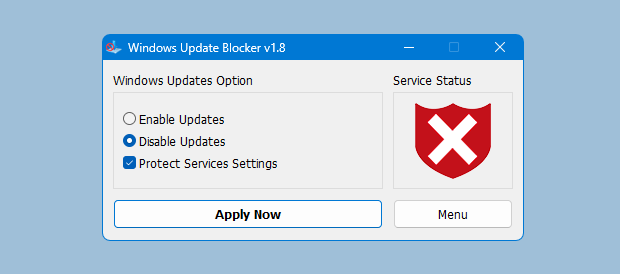
To stop the Windows 10 update service, open WUB with Administrator rights, choose Disable, click Apply, and enable Protect Service Settings. This keeps services off. Check the status indicator and reboot if needed to confirm the blocked state.
1. Launch WUB
Run Wub.exe with Administrator rights to access Windows service controls.
2. Disable & Apply
Choose Disable and click Apply so WUB can update the service configuration.
3. Enable Protection
Enable Protect Service Settings so Windows cannot re-enable updates automatically.
Confirm Your Status
WUB shows clear status indicators. A red indicator confirms Windows Update services are disabled.
If the indicator flips back, re-apply protection and check for policy overrides.
Service Commands (Reference)
WUB automates update service control. These commands illustrate the types of Windows 10 service changes it applies.
sc stop wuauserv
sc config wuauserv start= disabled
sc stop bits
sc config bits start= disabled
sc stop dosvc
sc config dosvc start= disabled
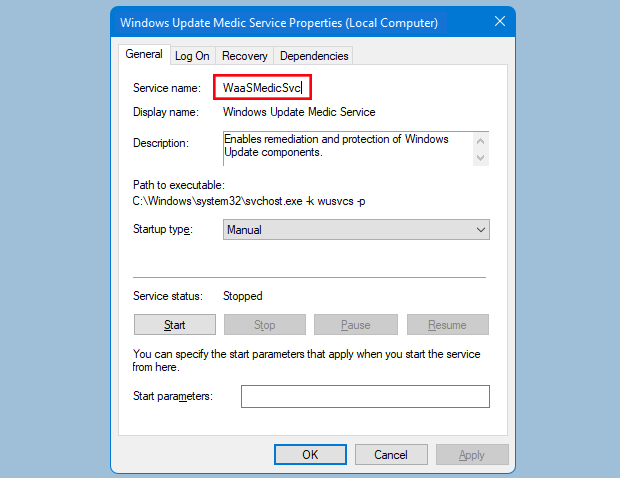
sc stop WaaSMedicSvc
sc config WaaSMedicSvc start= disabled
Common Issues
- Run WUB as Administrator or changes may not persist.
- Managed devices may enforce update policies automatically.
- Reboot if services still show the old state.
See the troubleshooting section in the main guides for more detailed fixes.
FAQ
Is pausing Windows updates safe?
Pausing updates can reduce interruptions but delays security fixes. Plan maintenance windows to re-enable updates and stay protected.
How do I turn off the Windows 10 update service?
Use WUB to disable updates, click Apply, and enable Protect Service Settings to keep services from reactivating.
Why do updates re-enable on Windows 10?
Windows may re-enable services after scans or policy checks. Enable protection and verify policy settings.